The Active Campaign integration will let you sync your contact form with your Active Campaign account. When you visitors will submit the contact form, the information will be pushed to one of your Active Campaign lists.
Here is how you can set it up.
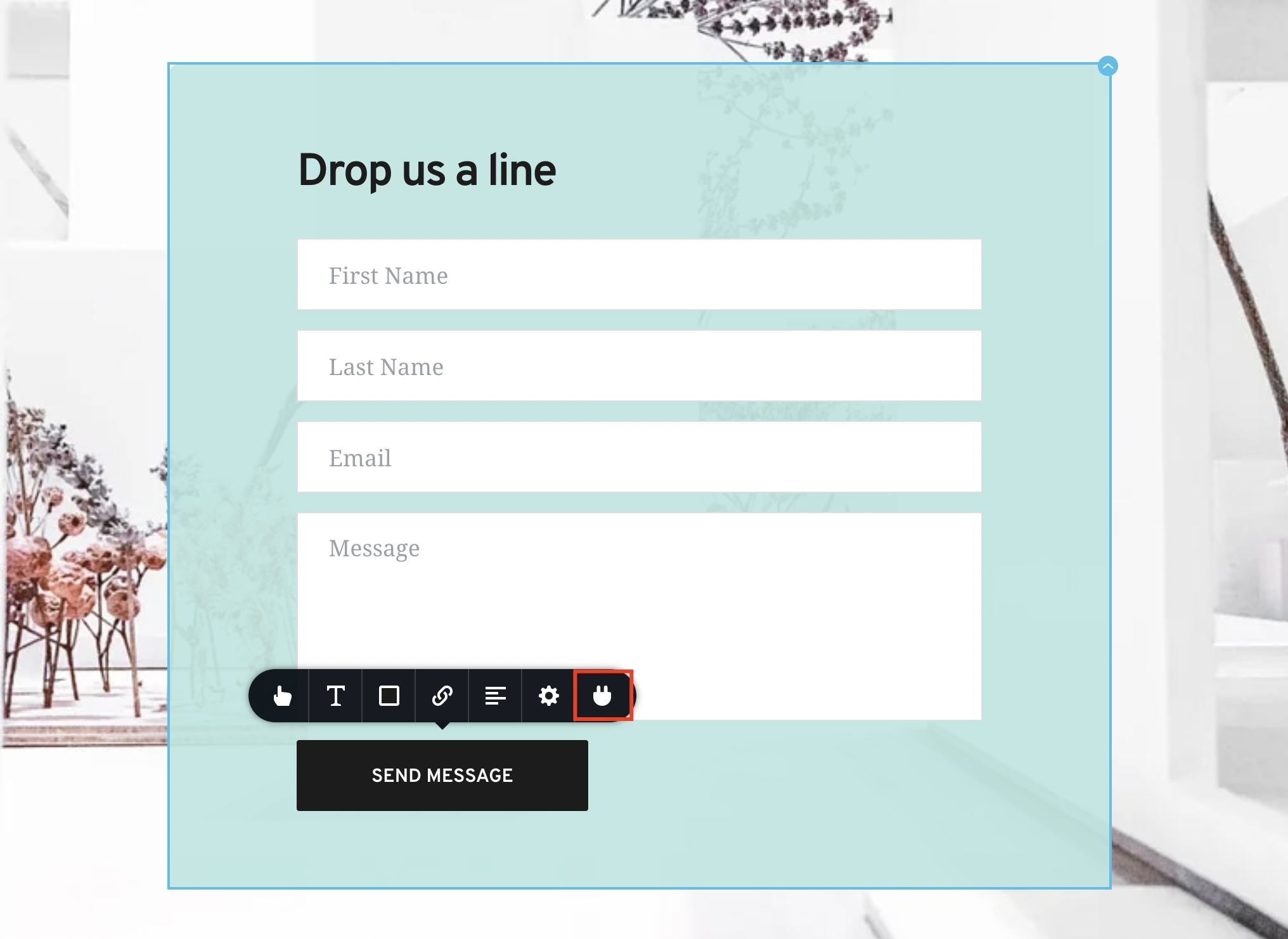
Step 1. Access the Integration Apps on the button of any contact form element in the Station builder
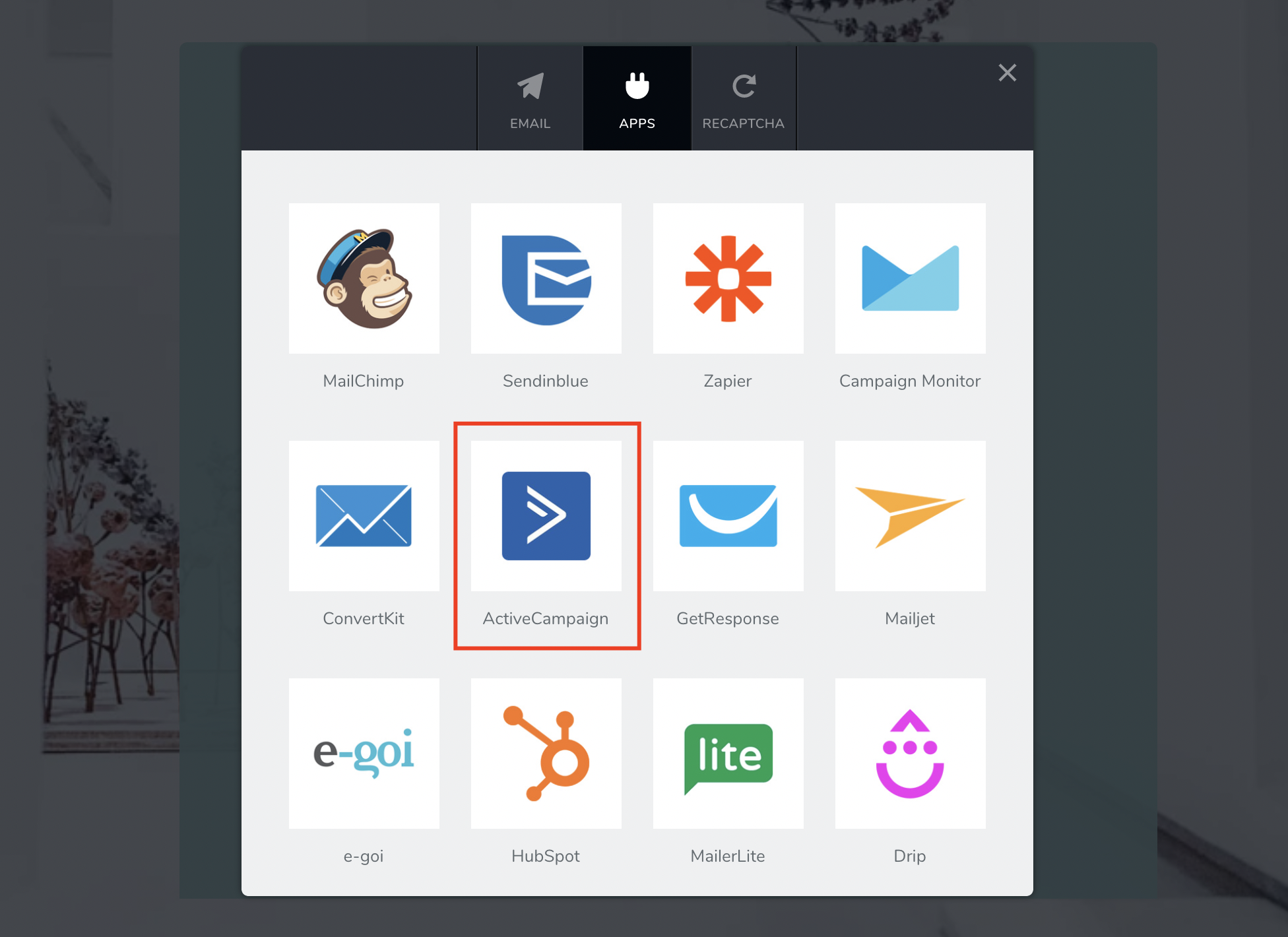
Step 2. Go to the Apps tab and select Active Campaign
Step 3. Here is where you’ll need to input your Active Campaign API key to allow Station to push your contact form details into one of your Active Campaign lists.
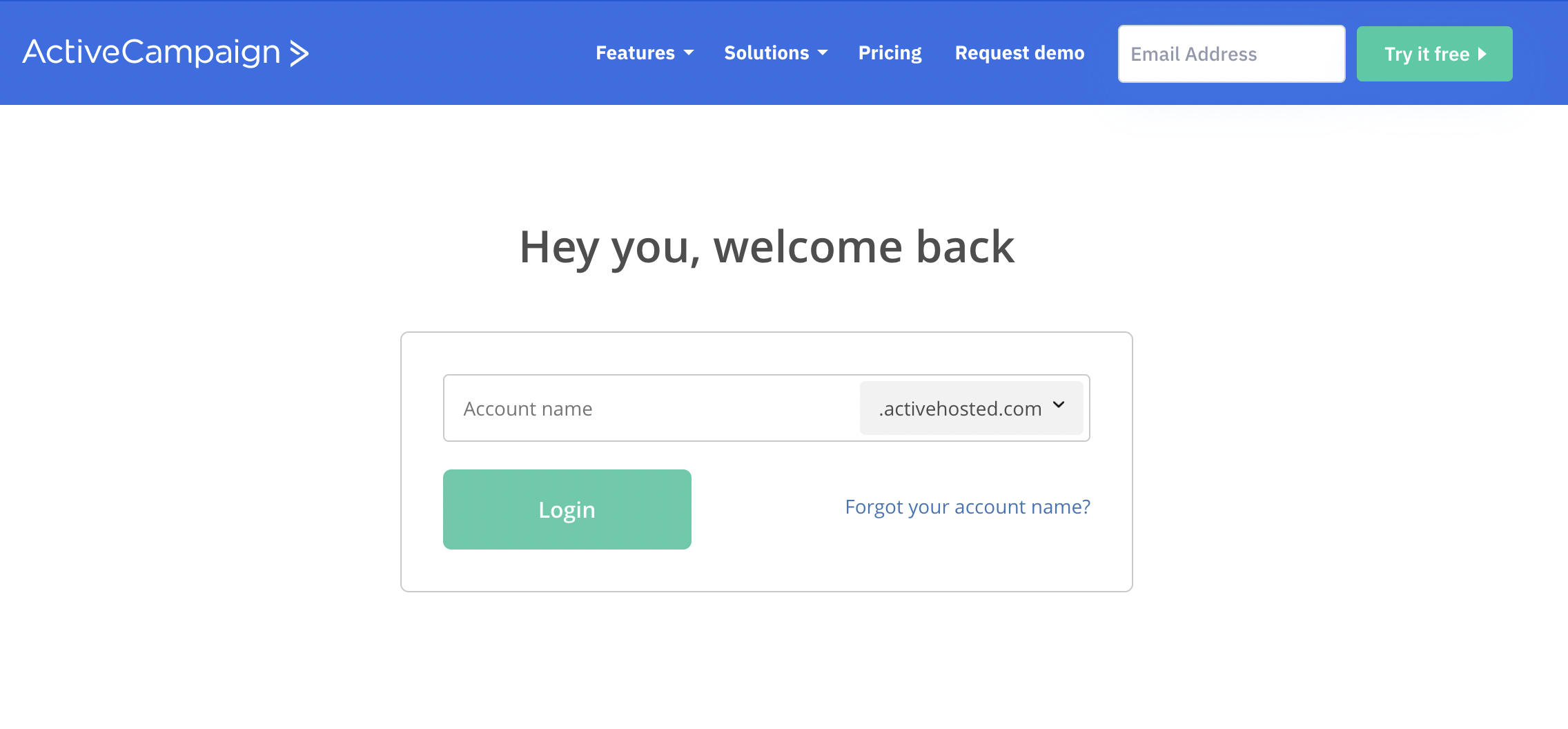
Step 4. Login into your Active Campaign account.
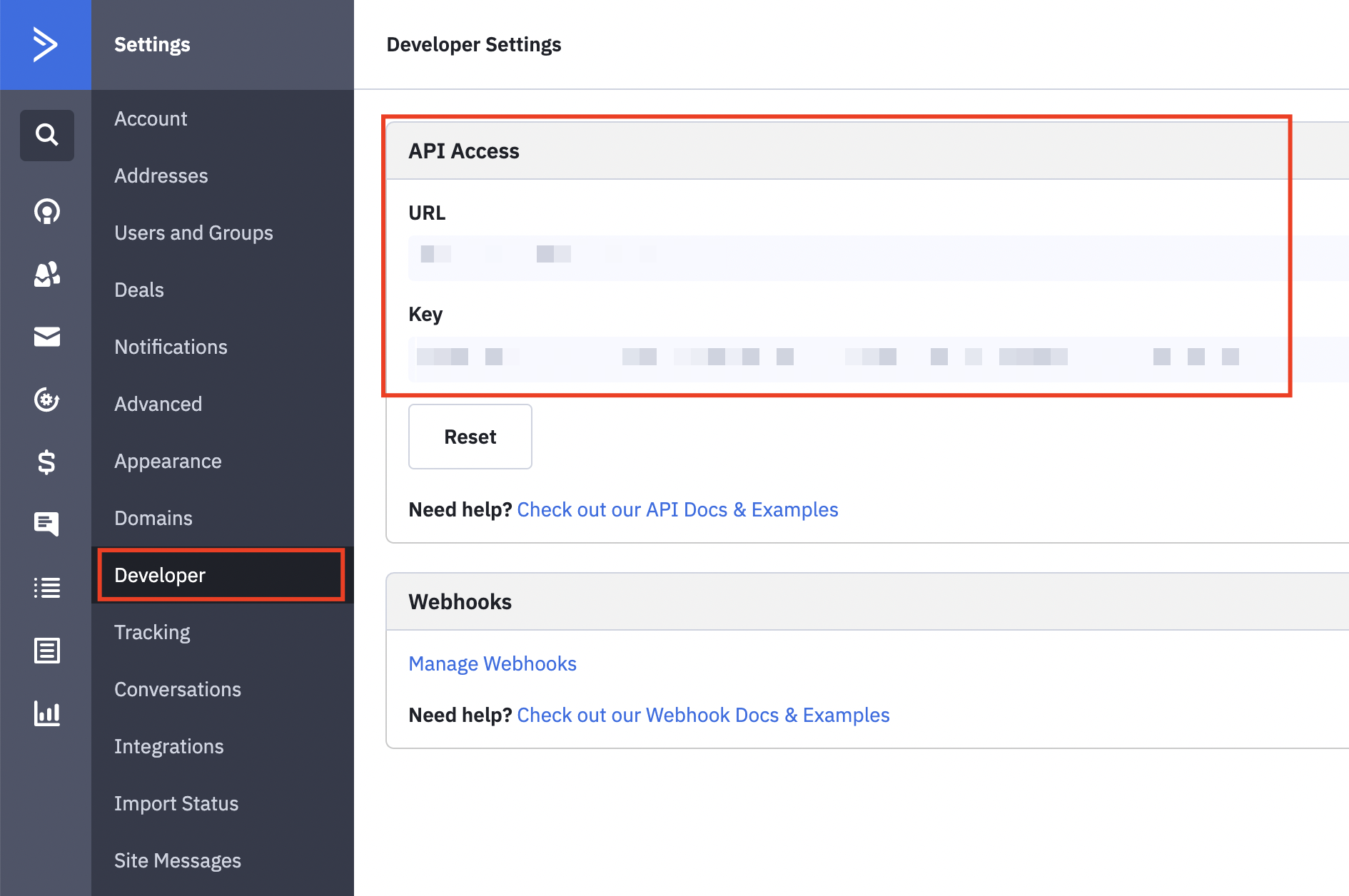
Step 5. Go to your Account settings.
Step 6. Under Developer find the API Access info.
Step 7. Copy/Paste the API info into your Station Integration window and press Connect.
Step 8. Check if the correct account is selected and press Continue
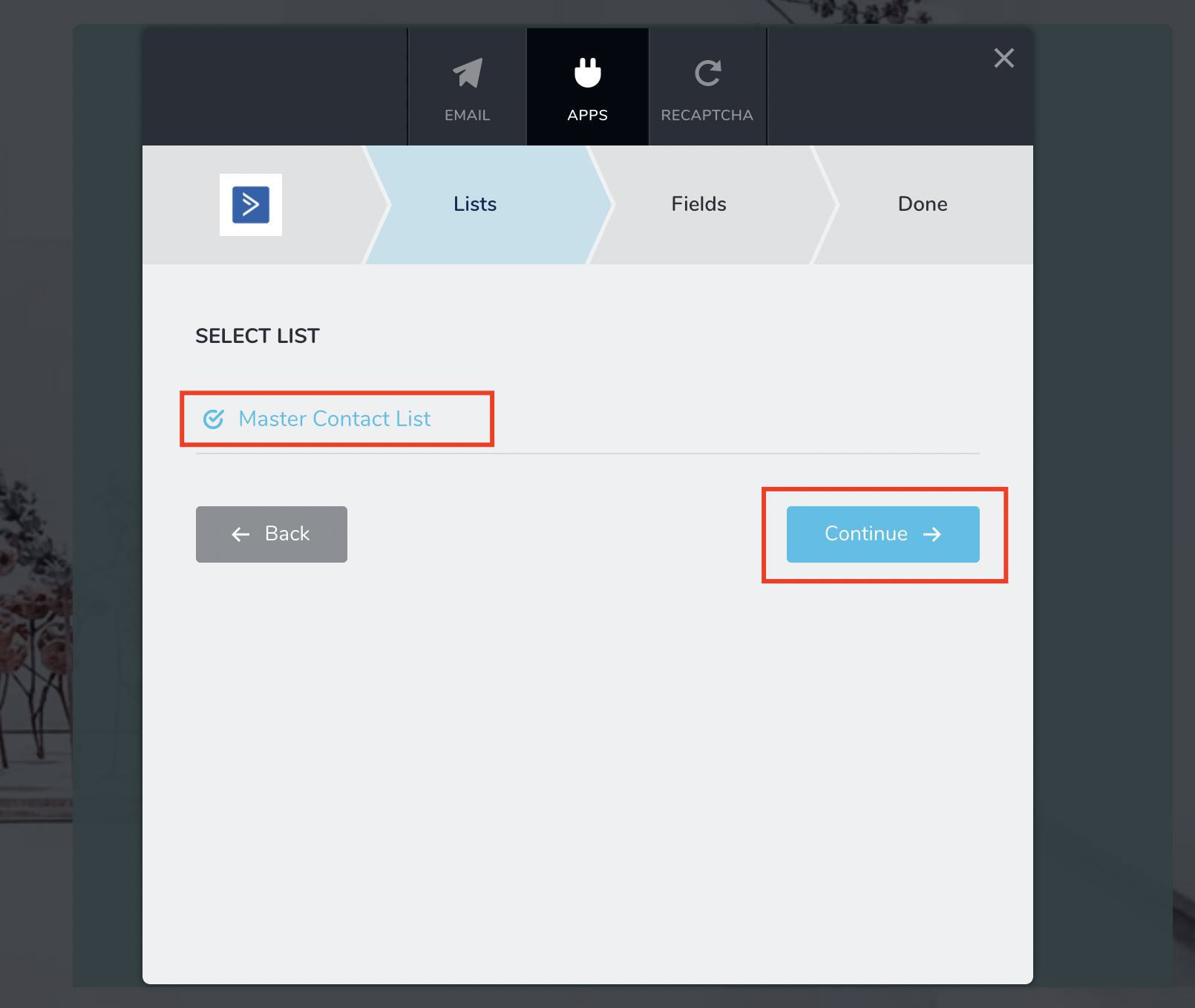
Step 9. Select one of your Active Campaign lists where you want your lead to be sent (or create a new list directly from Station)
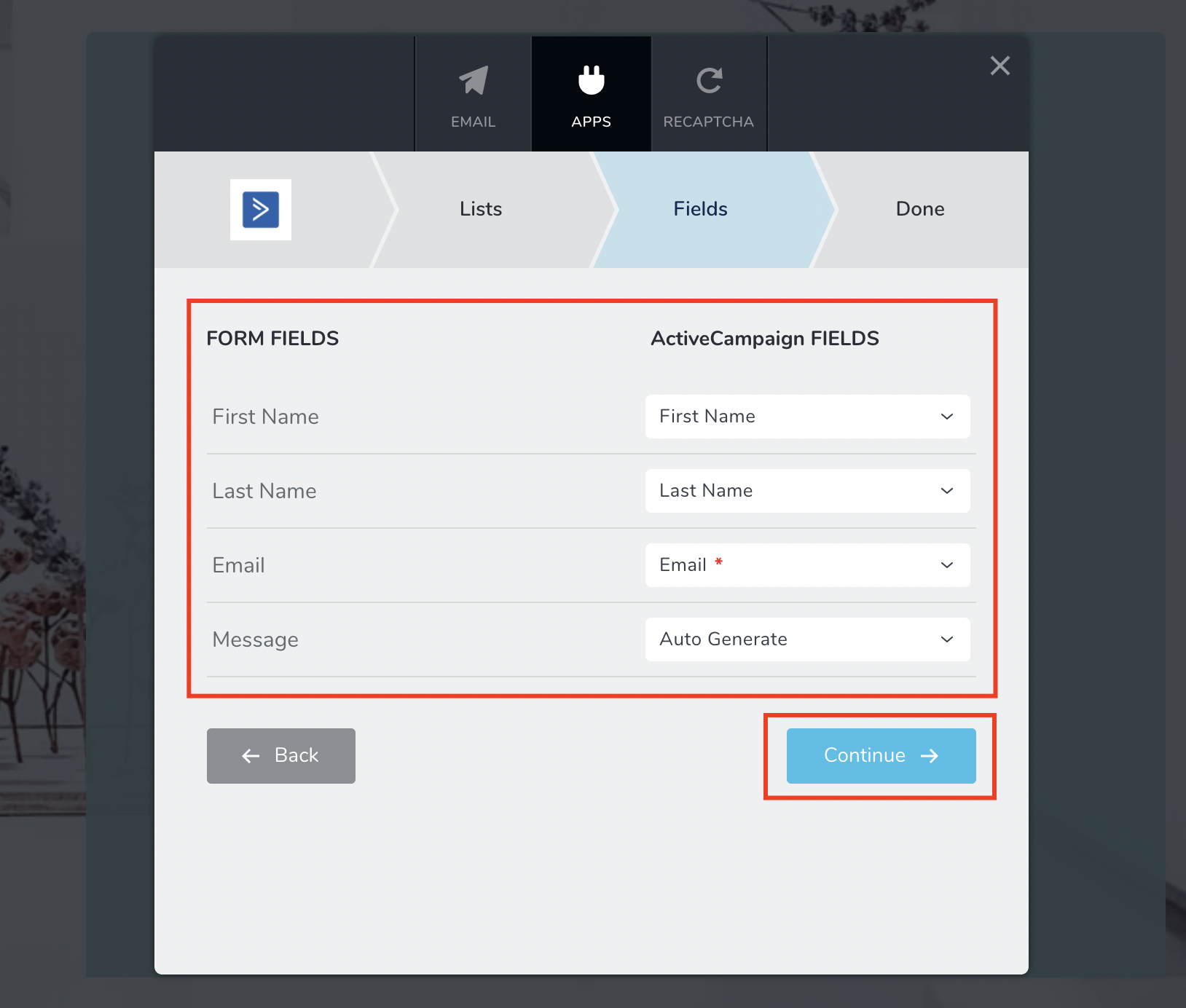
Step 10. Match your form fields with your Active Campaign fields. Only the email is mandatory. You can leave the rest on Auto Generate. Press the Continue button.
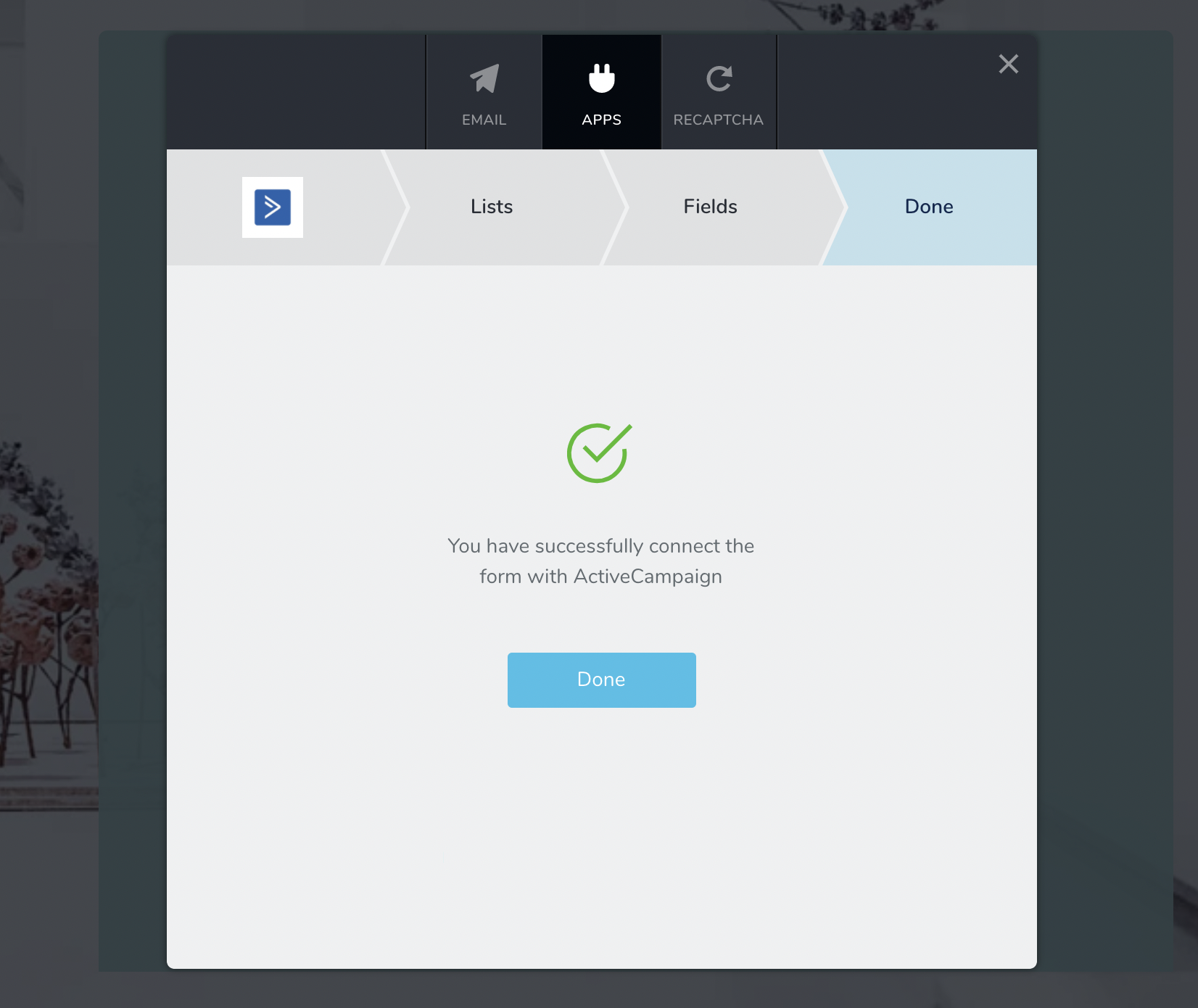
Step 11. You are done, your form is connected with Active Campaign. Press Done.
Once someone will submit your contact form on the front end
The lead will be pushed to your selected list in your Active Campaign account


Leave a Reply