Here is an overview of how Templating works within the Architect Builder on both the /lite/ site and Station Platform.
Generally, when you create a new Post, Category as an Asset, or other Custom Assets, the page is blank:

You can either start from scratch for that single asset, use a pre-made template – or create Global Templates to have ALL of those assets or blog posts formatted the same way.
Set the Dynamic Content #
Design the page the way you would want it to. When you’re ready to populate it with content, use Dynamic Content for each element.
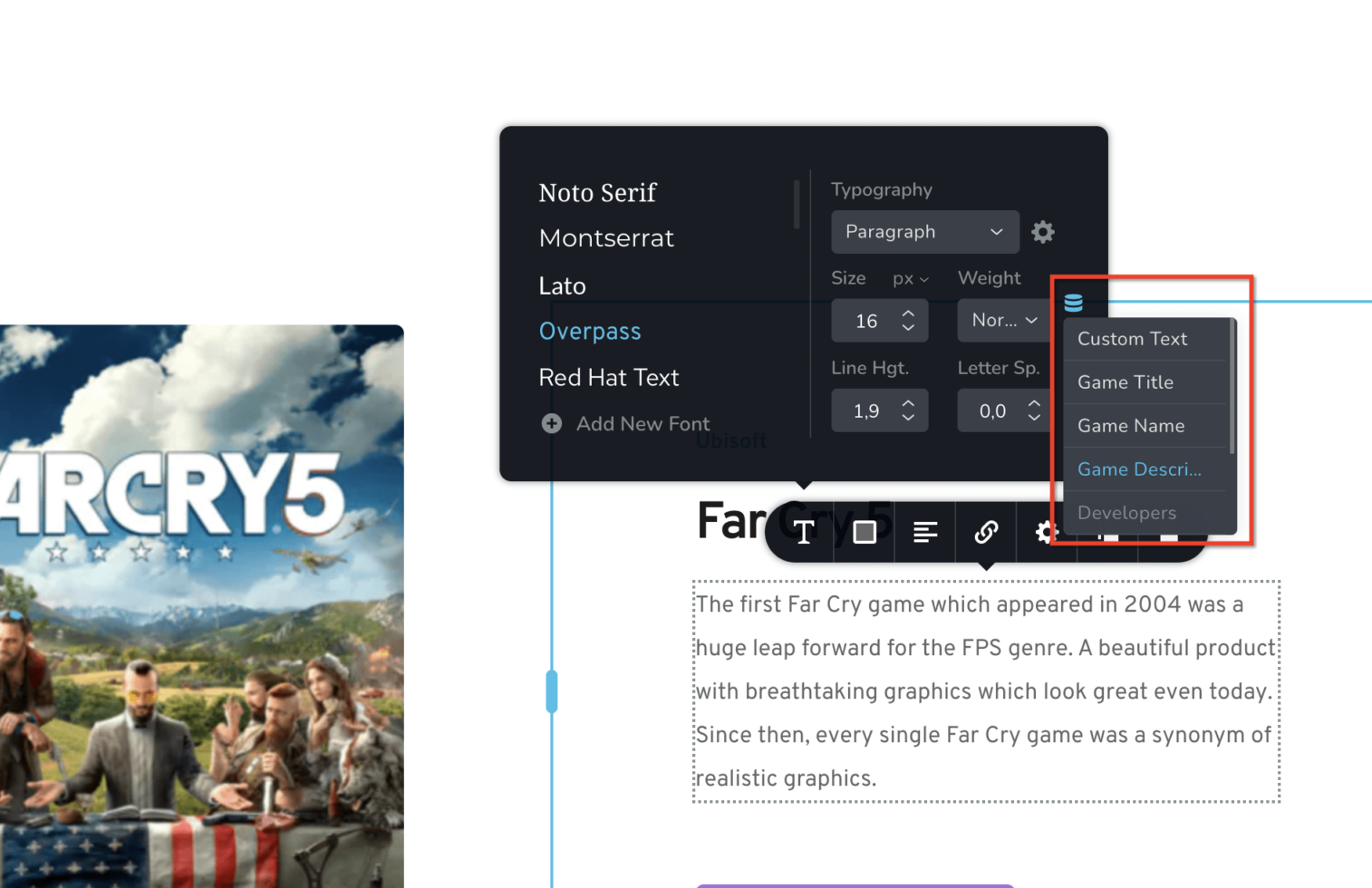
Make the Block Global #
Once all elements are populate with the Dynamic Content, set the block to Global and set the correct parameters.

- Global toggle is under the Gear tab of the Block settings
- Display Conditions allow you to fine tune where you want to display the Global Block – this is going to be the MOST important part of your template-making.
- Once you toggle the Global option on, you will be able to see at a glance which block are global.
Set the Display Conditions #

- Choose between “Include” and “Exclude”
- Choose to display everywhere (“All”) or choose the Asset Type
- Choose to display on all of that Asset Type, or find tune by Individual Asset or other options like Categories or Roles.
- Layer more Display Rules
Deleting a Global Block #
If you delete a global block from a page, it will only create a new Display Condition rule to “not include” that page/asset from the Global settings.
To completely delete a global block, you must enter the Display Conditions settings of that block and delete all rules. Then you can delete the block.
Another way is to enter the “Add Block” menu, navigate to the “Global Blocks” tab, and click the Trash Can icon in the corner.


Leave a Reply