In the Architect Builder you can add and use Google Fonts (over 950 fonts to choose from). Here is how to do it:
Adding a Google Font
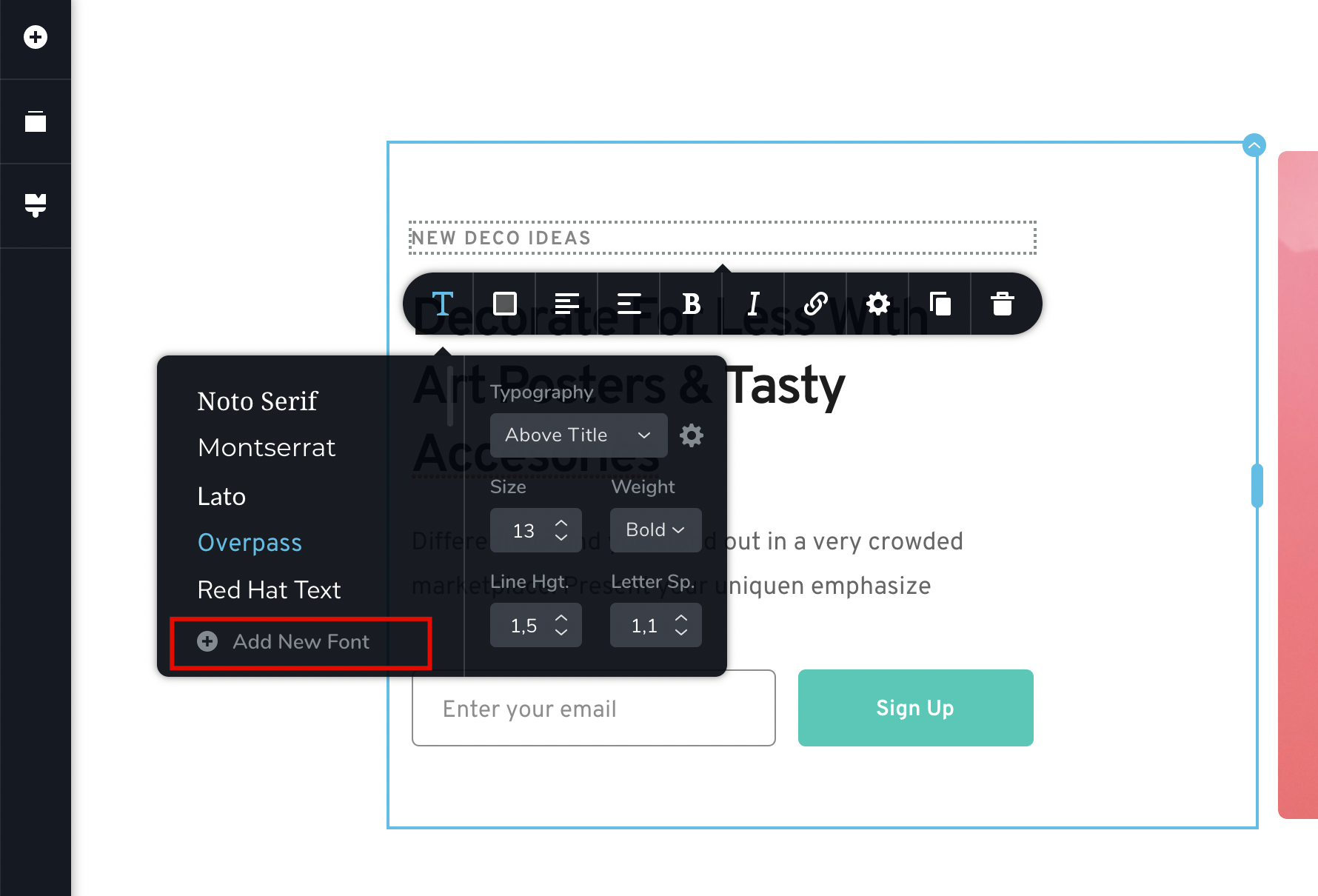
Step 1. From any text element in the page, click on Add New Font in the options toolbar
Step 2. Select the Google Fonts option

Step 3. Input the name of the Google Font you want to add. You can browse the Google Fonts library here.
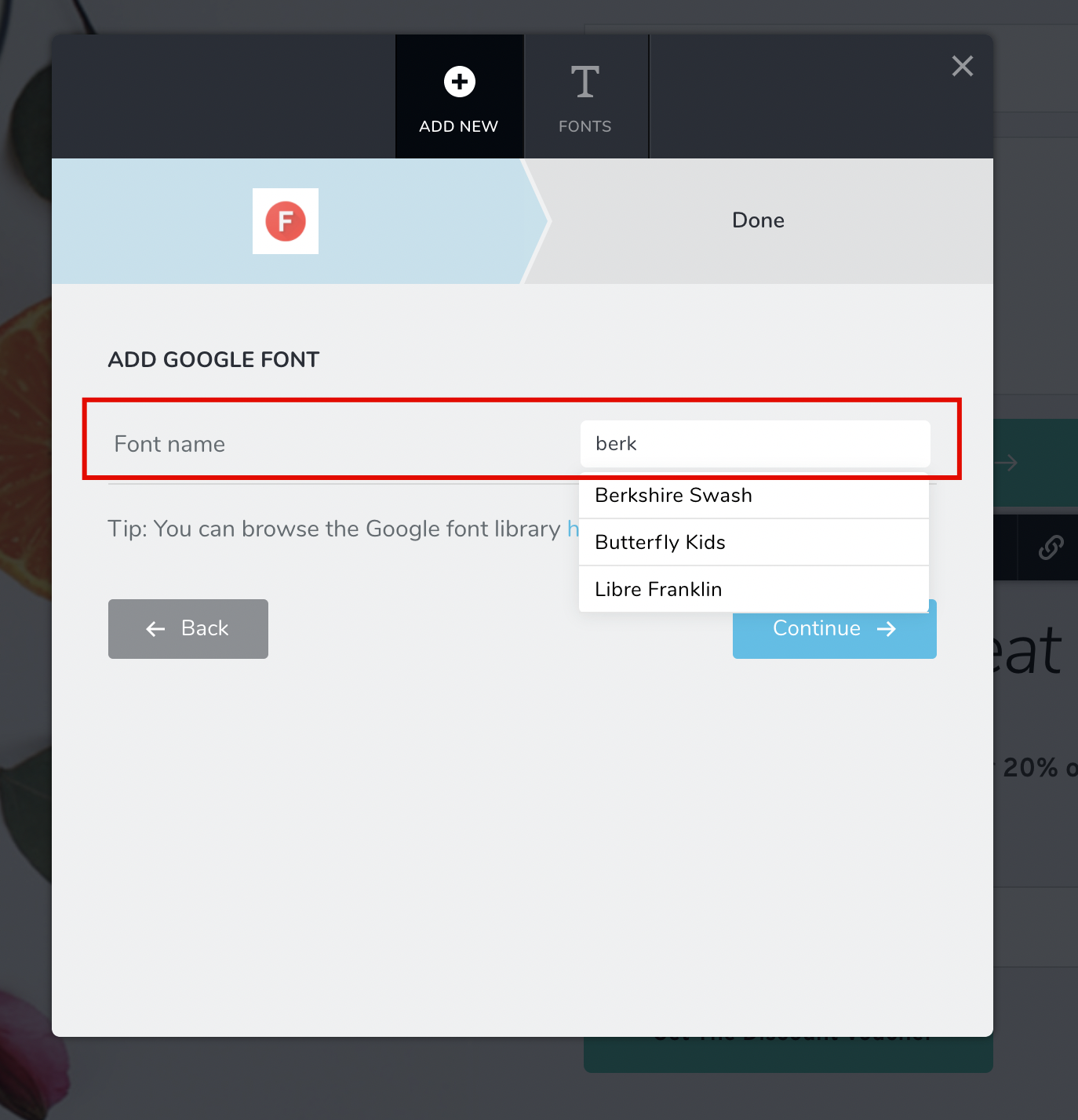
Step 4. Click Continue and you are done.

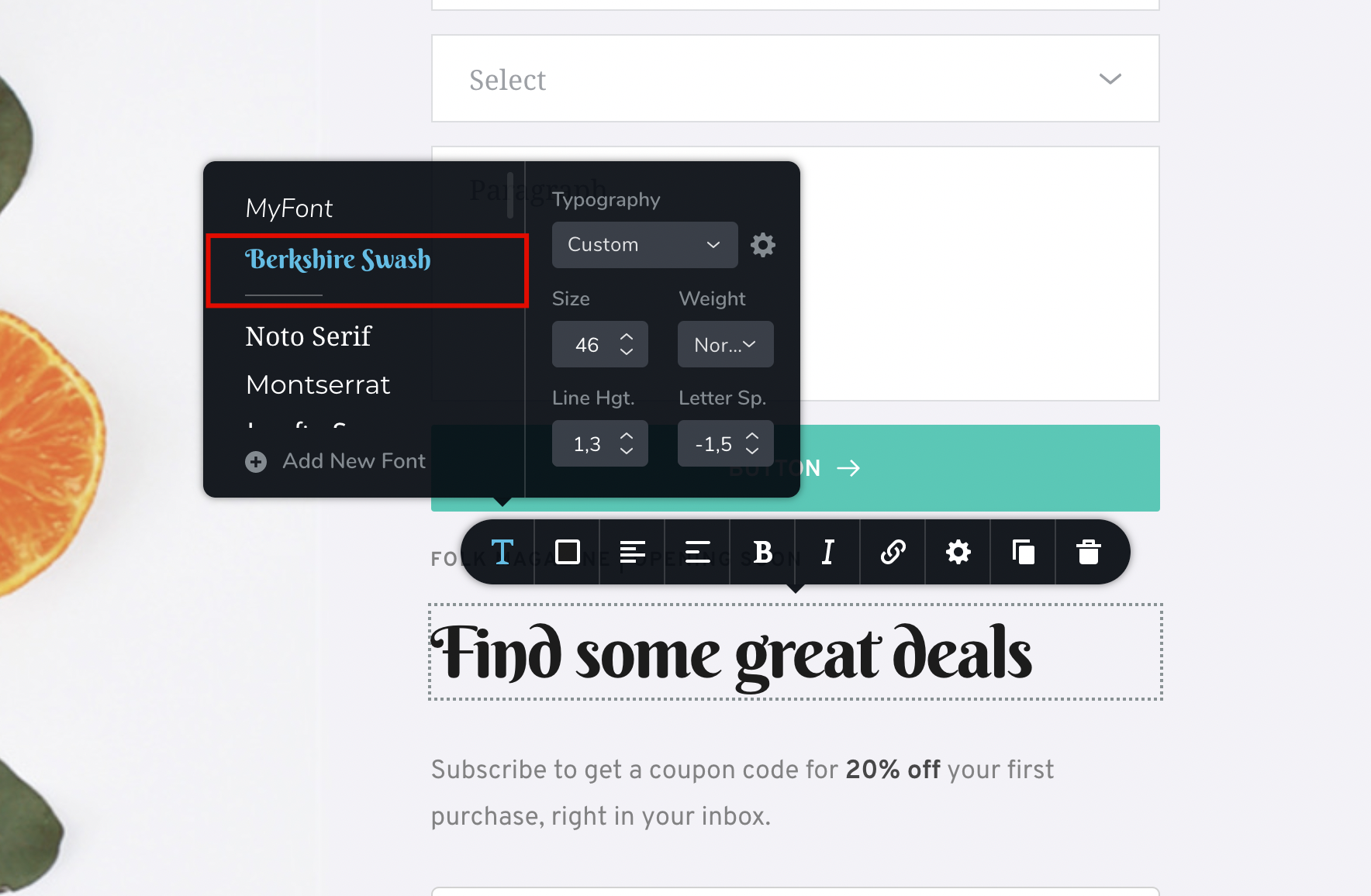
Step 5. The font will appear at the top of your fonts list on any text element.
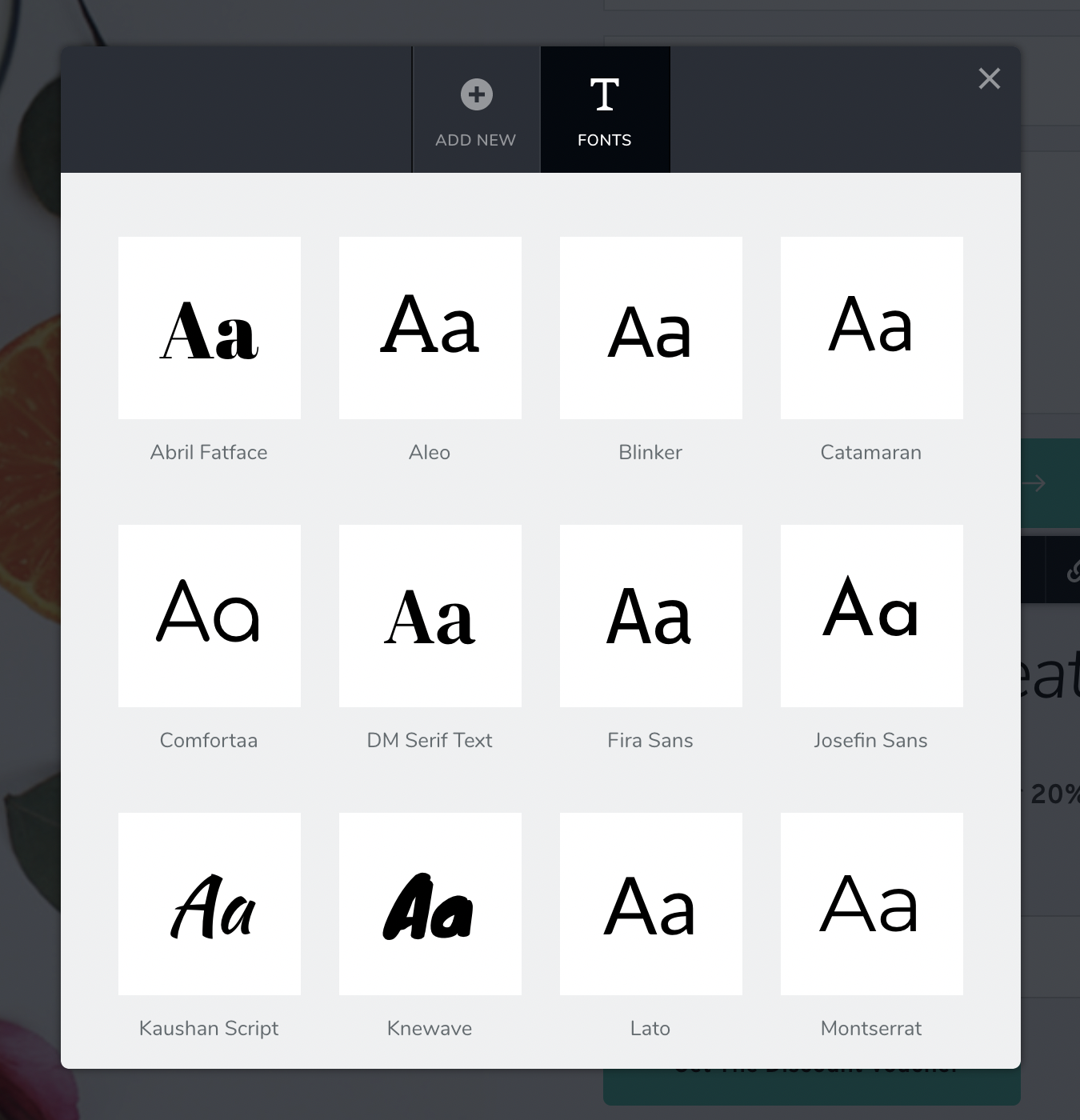
Keep in mind that you can delete any font from the Fonts Tab after you press the Add New Font button.


Leave a Reply